Jupyter notebook
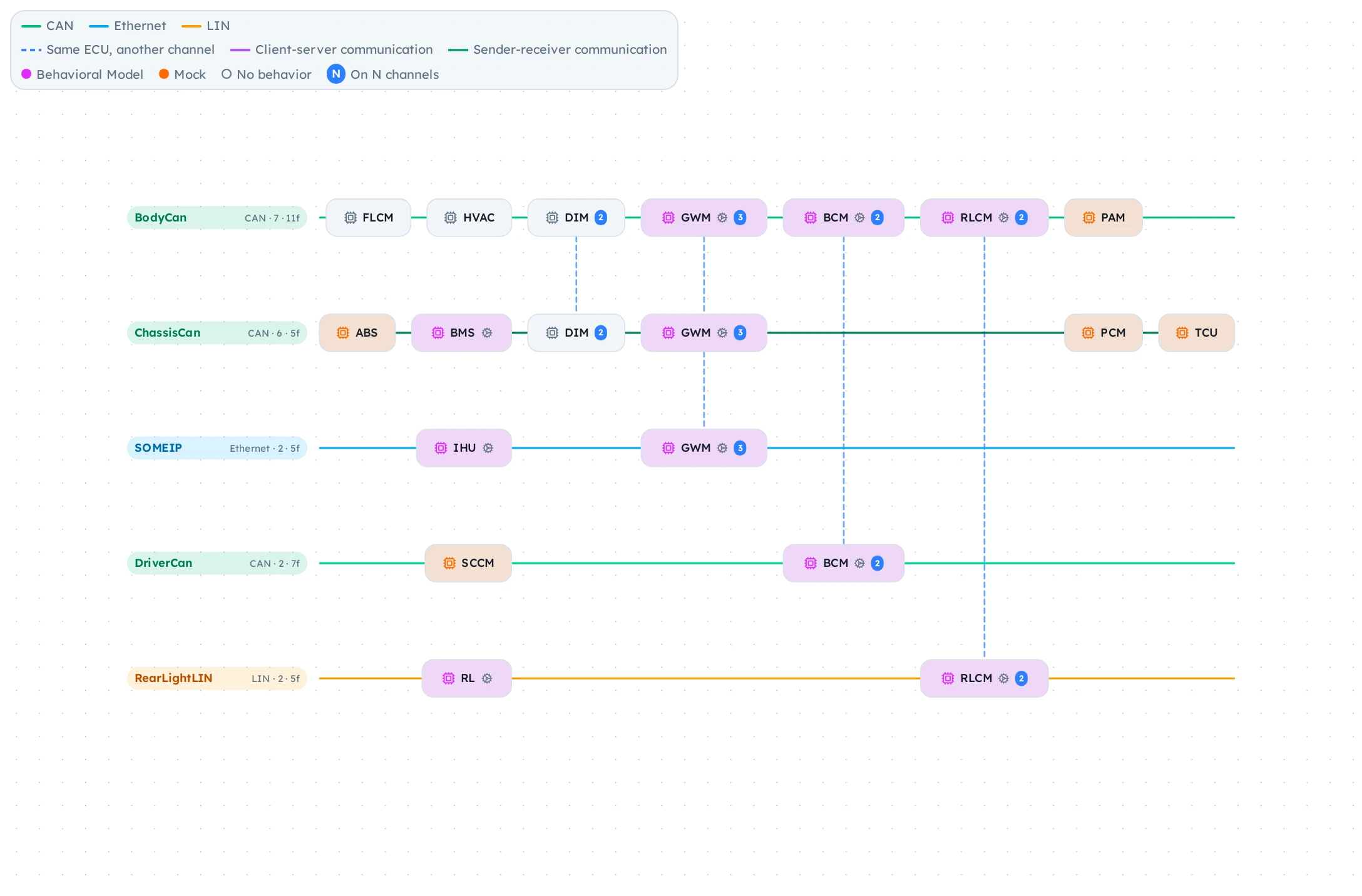
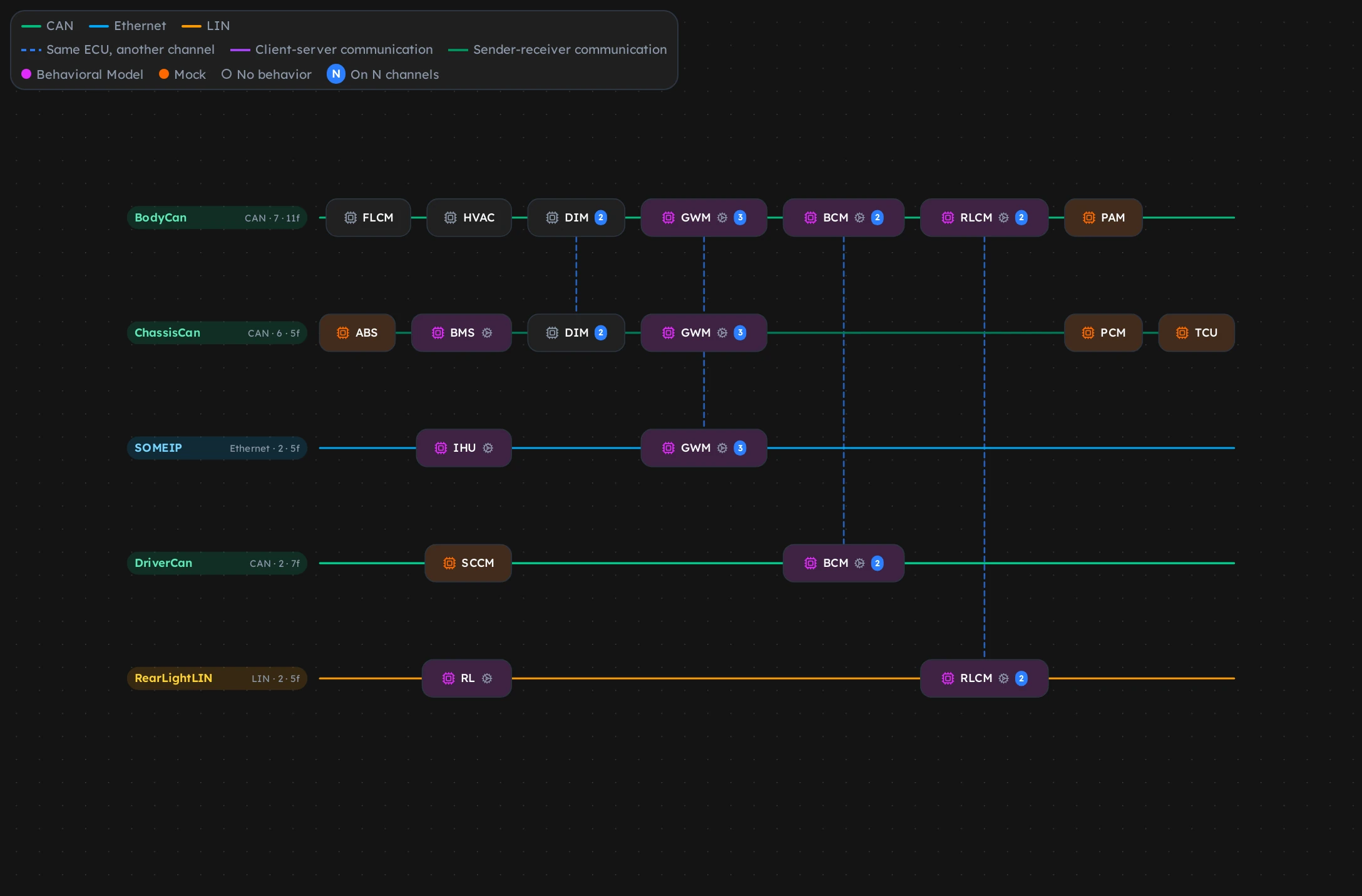
Run it
git clone https://github.com/remotivelabs/remotivelabs-remotive-car.git
cd remotivelabs-remotive-car

remotive topology build \
  -f instances/hello_world/main.instance.yaml \
  -f settings/can_over_udp.settings.instance.yaml \
  build

docker compose -f build/remotive_car_hello_world/docker-compose.yml --profile jupyter up --build
Open http://localhost:8888 and run the notebook.
Using RemotiveTopology framework from Jupyter notebook allows you to interact with a running instance and easily create custom user interfaces.
- Part of the RemotiveCar example
- Example notebook car.ipynb
- Control how to run jupyter.instance.yaml
- Python project: pyproject.toml
Start topology and jupyter:
remotive topology build ...
docker compose -f ... --profile jupyter up
Example with hello_world instance:
remotive topology build -f instances/hello_world/main.instance.yaml build
docker compose -f build/remotive_car_hello_world/docker-compose.yml --profile jupyter up --build
Notice:
- Jupyter is run in a container as part of the topology.
- By using a profile you can use the same instance and use the profile to control if Jupyter should run or not.
- In this example the same Dockerfile is used for all python code in order to reuse the same base image. You can of course use separate Dockerfile for each container.